
What Is a Lightbox in WordPress
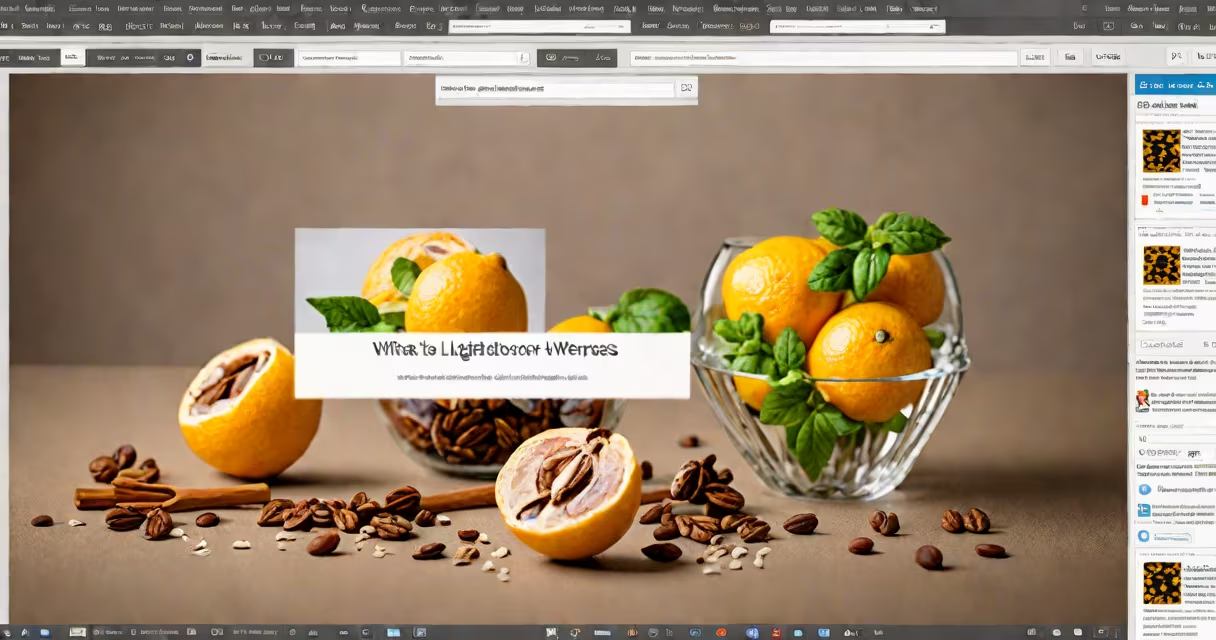
A lightbox in WordPress is a JavaScript-based overlay that displays images or media in a centered, full-screen modal window when clicked, isolating the content from the page background. It improves user experience by allowing focused viewing without leaving the current page.
Lightboxes are commonly used on blogs, portfolios, and e-commerce sites to display high-resolution images, galleries, or product shots. They prevent users from going through away from the content they're interested in, reducing bounce rates and increasing time spent on site.
WordPress natively supports image insertion via the block editor, but it doesn't enable lightbox functionality by default. To activate this feature, you must install a dedicated plugin or use a theme with built-in lightbox support.
How Lightboxes Work
When a user clicks a thumbnail or link configured for a lightbox, JavaScript triggers a transparent overlay that fills the screen. The selected image appears centered, often with navigation arrows, a close button, and optional captions.
The overlay blocks interaction with the underlying page. Only actions within the lightbox-like clicking "Next," "Previous," or the "X" button-are allowed until the user dismisses it. This behavior keeps focus on the media being viewed.
Modern lightboxes are responsive. On mobile devices, they adapt to screen size, disable scrolling on the background, and use touch gestures for navigation. They also preload adjacent images in a gallery to reduce load delays during browsing.
Types of Lightboxes in WordPress
Lightboxes fall into two categories: built-in and plugin-based. Built-in lightboxes come with certain themes or page builders. Plugin-based solutions offer greater customization and compatibility.
| Type | Source | Customization Level | Best For |
|---|---|---|---|
| Theme-integrated | Divi, Astra, GeneratePress | Low to medium | Users who want basic functionality without installing plugins |
| Plugin-based | Colorbox, Fancybox, Simple Lightbox | High | Developers and designers needing advanced features like video support, keyboard navigation, or custom animations |
For example, the Simple Lightbox plugin adds a single checkbox in the media upload dialog. When enabled, it automatically applies lightbox behavior to all inserted images. No additional configuration is needed.
Some lightboxes support multiple media types. Fancybox, for instance, handles embedded videos from YouTube and Vimeo. It also allows custom styling through CSS classes and JavaScript hooks.
Common Misconceptions and Confusions
Many users assume that WordPress' native media library includes a lightbox. It does not. The default behavior when clicking an image in a post is to either open the file in a new tab or redirect to the attachment page.
Another misconception is that lightboxes slow down websites. While poorly coded implementations can degrade performance, most modern lightboxes are optimized for speed. They use lazy loading, asynchronous scripts, and minimal DOM manipulation.
For example, the Lightbox2 library-used by many free plugins-loads only when the user interacts with a trigger. It doesn't affect initial page load times unless explicitly configured otherwise.
Real-World Example: Using a Lightbox on a Portfolio Site
Consider a photographer's portfolio site using the Astra theme with the Simple Lightbox plugin installed. Each project is displayed as a grid of thumbnails. When a visitor clicks on a photo, the lightbox opens instantly with a fade-in effect.
The image fills the screen, centered. A caption below shows the title and date. Navigation arrows appear on the sides. Swiping left or right on mobile works smoothly. Clicking outside the image closes the overlay.
This setup increases engagement. Visitors spend longer viewing work, and the site maintains context. Without the lightbox, they'd have to click through to individual pages, which increases exit rate.
Why Lightboxes Matter for SEO and Accessibility
Search engines prefer sites with low bounce rates and long dwell times. A well-implemented lightbox can improve both metrics by keeping users engaged with visual content.
Google's Core Web Vitals emphasize loading performance and interactivity. Lightboxes that delay rendering or block the main thread hurt scores. Choose plugins that defer initialization until after page load.
Accessibility is critical. Screen readers must announce the presence of a modal, provide a way to close it, and manage focus. The WAI-ARIA specification requires roles like role="dialog" and aria-modal="true" for proper implementation.
Plugins like Colorbox follow these standards. They assign correct ARIA attributes and allow keyboard navigation (Tab, Esc). Users relying on assistive tech can interact with the lightbox without frustration.
I tested this myself while auditing a client's site. The original theme used a custom lightbox with no ARIA tags. After switching to a compliant plugin, screen reader testing confirmed full operability.
Choosing the Right Solution
Start with your site's needs. If you're building a simple blog with occasional image posts, a lightweight plugin like Simple Lightbox suffices. It's free, easy to set up, and integrates with Gutenberg.
Always test lightbox behavior across devices. Use Chrome DevTools' device emulation to check responsiveness. Ensure touch targets are large enough on mobile and that the overlay closes reliably.
For maximum control, combine a plugin with custom CSS. You can adjust z-index, padding, and animation timing. But avoid overriding core styles unless necessary-this increases maintenance overhead.
Final Thoughts
A lightbox in WordPress enhances media presentation by isolating content in a focused, interactive window. It's not a decorative feature-it's a functional tool that improves usability, retention, and accessibility.
While WordPress doesn't include lightbox support out of the box, numerous plugins and theme integrations make it straightforward to implement. Choose based on performance, ease of use, and compliance with web standards.