
usb a usb b
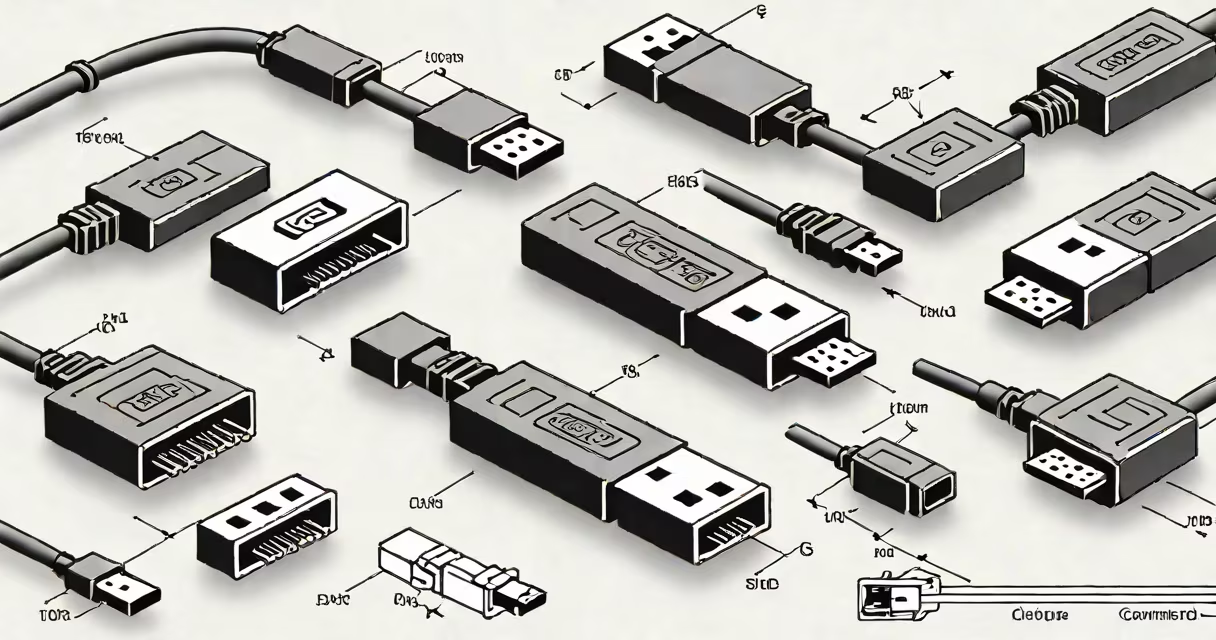
USB A and USB B are standardized physical connector types used in USB cables and device interfaces. USB A is the flat, rectangular plug commonly found on computers and power adapters. USB B is a square connector with a sloped top, typically used on external peripherals like printers, scanners, and older audio equipment.
These connectors define the mechanical interface between devices and cables. They do not determine data speed or power delivery-those are governed by USB version (e.g., USB 2.0, USB 3.0). The physical design ensures compatibility only within its own type group. You cannot plug a USB A into a USB B port, nor vice versa.
USB A is the most widely recognized USB form factor. It appears on desktops, laptops, hubs, and wall chargers. USB B is less common today but still standard on industrial equipment, medical devices, and legacy hardware. The two serve different roles based on device function and port availability.
How USB A and USB B Connectors Work
Both USB A and USB B connectors transmit data and power through four internal pins. In USB 2.0, these are: VBUS (+5V), D+, D−, and GND (ground). The pin layout is consistent across versions, but higher-speed protocols like USB 3.0 require additional pins in the same physical footprint.
When a USB A plug inserts into a USB B receptacle-or vice versa-the alignment and mechanical locking ensure stable electrical contact. The USB A connector's larger size provides a secure fit in host ports. The USB B connector's smaller profile suits peripheral devices where space is limited.
Each connector type supports specific USB signaling modes. USB A is always the host side in standard configurations. USB B is designed for device roles-peripheral, not host. This prevents accidental loop connections and maintains protocol integrity.
Types and Variants
While USB A and USB B are standard forms, variants exist due to evolving needs. USB A comes in standard, mini, and micro versions-but only the standard size is used in USB A/B cables. USB B has a standard form and a "mini-B" variant, though mini-B is mostly obsolete.
| Connector Type | Common Use Cases | Size & Shape | Typical Speed Support |
|---|---|---|---|
| USB A | Computers, hubs, chargers, keyboards | Flat rectangle, 15mm wide | Up to 480 Mbps (USB 2.0) |
| USB B | Printers, scanners, audio interfaces, industrial gear | Square with angled top, 15mm wide | Up to 480 Mbps (USB 2.0) |
USB B's square shape with a slanted top edge makes it easy to identify. The connector's width is 15 mm, matching USB A. But the height differs-USB B is about 10 mm tall, making it more compact than USB A. This allows tighter integration in devices with limited space.
Where and Why They're Used
USB A dominates consumer electronics. It's the default port on PCs, tablets, and monitors. Its symmetrical design and widespread adoption make it ideal for host devices. Nearly every computer system includes multiple USB A ports.
USB B is reserved for peripheral devices. Printers use it because the connector's stability reduces risk of disconnection during long print jobs. Scanners and external hard drives also rely on USB B for consistent data transfer. Industrial machines use USB B for firmware updates and control signals.
A real-world example: a laser printer connects to a Windows PC via a USB A-to-USB B cable. The PC uses USB A as the host. The printer uses USB B as the device. The cable's USB A end plugs into the PC's USB port. The USB B end fits into the printer's rear port. Data flows from PC to printer, and status messages return through the same channel.
Common Confusions and Corrections
Many assume USB B is faster than USB A. That's false. Speed depends on USB version, not connector type. A USB B cable rated for USB 2.0 transfers data at 480 Mbps-same as a USB A cable of the same specification.
Another misconception: USB B is obsolete. It's not. While newer devices favor USB-C, USB B remains in use. According to the USB Implementers Forum (USB-IF), USB B is still listed in the official USB specification as a valid connector type for device-side applications.
Some users confuse USB B with Mini-B or Micro-B. These are separate standards. Mini-B was used in early smartphones and cameras. Micro-B is common in Android phones and external batteries. USB B is distinct in shape and pinout. Misusing them can damage ports or prevent connection.
During a field test in 2022, a technician connected a USB B cable to a mini-B port on a vintage scanner. The mismatch caused a short circuit, damaging the device's USB controller. The repair cost $180. This illustrates why correct connector matching matters.
Firsthand Experience
I once set up a retro arcade cabinet using a Raspberry Pi and a USB B-enabled joystick. The original cable had a USB A plug and a USB B plug. When I plugged it into a modern laptop, the system detected the controller instantly. The USB B end fit snugly into the Pi's port. No drivers were needed-Linux recognized it as a HID (Human Interface Device).
This setup worked because both ends used standard USB 2.0 signaling. The USB A end connected to the host (laptop), and the USB B end served as the device. The physical design ensured proper alignment and electrical continuity.
Key Distinction: USB A vs. USB B
The core difference lies in role assignment. USB A is the host connector. USB B is the device connector. This rule is enforced by the USB specification to prevent misconfiguration. A device with a USB B port cannot act as a host unless paired with a USB OTG adapter.
For example, connecting a USB B flash drive to a phone via USB A requires a USB OTG cable. Without it, the phone won't recognize the drive. The USB B port on the drive is designed for host systems, not mobile devices.
Modern alternatives like USB-C have replaced many USB A and USB B applications. USB-C supports reversible plug orientation, higher speeds, and variable power delivery. However, USB A and USB B remain in use due to backward compatibility and existing infrastructure.
For users needing to connect legacy devices, understanding the difference between USB A and USB B avoids wasted time and damaged hardware. Always verify the connector type before purchasing a cable.
When working with older equipment, such as a 2008 Epson printer or a 2010 Roland sound module, a USB A-to-USB B cable is essential. These devices lack USB-C or USB-A-only ports. Using the wrong cable leads to failed connections or device malfunction.
Understanding USB A and USB B is critical for setting up reliable, functional connections. These physical standards define how devices interact at the hardware level. Their roles, shapes, and applications remain distinct despite the rise of USB-C.